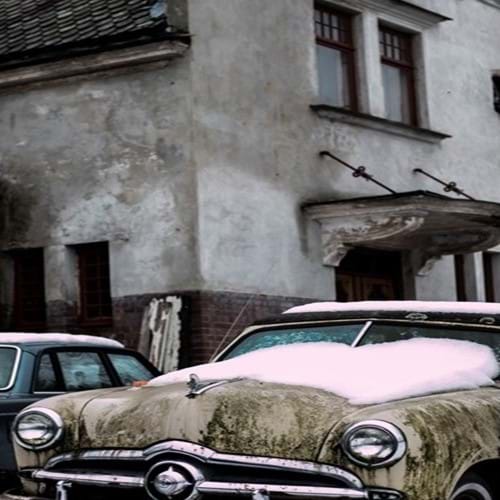
Resize
Resizes the current image to the given dimensions.
ImageProcessor.Web allows you to scale images both up and down with an excellent quality to size ratio. A maximum width and height can be set in the configuration to help protect you from DoS attacks.
Six different types of resizing methods are available:
- Pad (default)
- BoxPad (Added v4.4.0)
- Crop
- Min (Added v4.4.0)
- Max
- Stretch
All image requests allow upscaling by default. A limiter is set in the processing.config file to help prevent
DoS attacks.
To turn off upscaling simply append the value
upscale=false to your request url. (This does not affect stretched, boxpad, nor min modes).
Requests are passed thus:
Resize Pad
Passing a single dimension will automatically preserve the aspect ratio of the original image. If the requested aspect ratio is different then the image will be padded to fit. Widths and heights can optionally also be passed as a ratio. You can recolour the background color of the padded area for image types without transparency from the default black.
Pad mode also offers optional anchor positions:
- center (default)
- top
- right
- bottom
- left
- topleft
- topright
- bottomleft
- bottomright
<!--Automatic height based on width-->
http://your-image?width=600
<!--Automatic width based on height-->
http://your-image?height=250
<!--Both dimensions specified-->
http://your-image?width=600&height=250
<!--Both dimensions specified with the image anchored to the top-->
http://your-image?width=600&height=250&anchor=top
<!--Height ratio passed for automatic scaling-->
http://your-image?width=600&heightratio=0.416
<!--Width ratio passed for automatic scaling-->
http://your-image?widthratio=2.4&height=250
<!--Background color added to padded image-->
http://your-image?width=600&height=250&bgcolor=fff
Resize BoxPad
When upscaling an image the image pixels themselves are not resized, rather the image is padded to fit the given
dimensions. When downscaling the image is resized using the rules defined by ResizeMode.Pad.
You can recolour the background color
of the padded area for image types without transparency from the default black.
BoxPad mode also offers optional anchor positions:
- center (default)
- top
- right
- bottom
- left
- topleft
- topright
- bottomleft
- bottomright
<!--Automatic height based on width-->
http://your-image?width=600&mode=boxpad
<!--Automatic width based on height-->
http://your-image?height=250&mode=boxpad
<!--Both dimensions specified-->
http://your-image?width=600&height=250&mode=boxpad
<!--Both dimensions specified with the image anchored to the top-->
http://your-image?width=600&height=250&anchor=top&mode=boxpad
<!--Height ratio passed for automatic scaling-->
http://your-image?width=600&heightratio=0.416&mode=boxpad
<!--Width ratio passed for automatic scaling-->
http://your-image?widthratio=2.4&height=250&mode=boxpad
<!--Background color added to padded image-->
http://your-image?width=600&height=250&mode=boxpad&bgcolor=fff
Resize Crop
Resizes the image to the given dimensions. If the set dimensions do not match the aspect ratio of the original image then the output is cropped to match the new aspect ratio.
Crop mode also offers optional anchor positions:
- center (default)
- top
- right
- bottom
- left
- topleft
- topright
- bottomleft
- bottomright
You may specify a center as a fraction from the top-left corner of the image in y,x format. Fractions are specified as a decimal between 0 and 1. This point will be as close to the center of your crop as possible while keeping the crop within the image
<!--Standard-->
http://your-image?width=300&height=300&mode=crop
<!--Crop anchored to the top-->
http://your-image?width=300&height=300&mode=crop&anchor=top
<!-- Center -->
http://your-image?width=300&height=300&mode=crop¢er=0.25,0.30
Resize Min
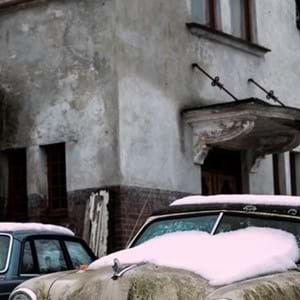
Resizes the image until the shortest side reaches the set given dimension. This will maintain the aspect ratio of the original image. Upscaling is disabled in this mode and the original image will be returned if attempted.
http://your-image?width=500&height=500&mode=min
Resize Max
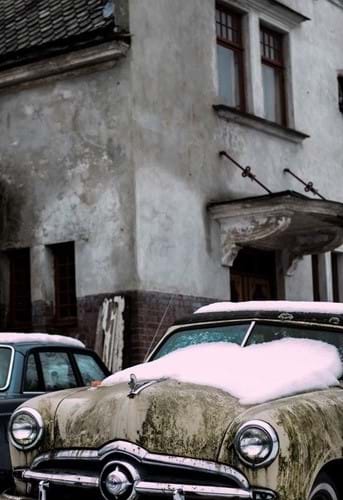
Resizes the image to the given dimensions. If the set dimensions do not match the aspect ratio of the original image then the output is resized to the maximum possible value in each direction while aintaining the original aspect ratio.
http://your-image?width=500&height=500&mode=max
Resize Stretch
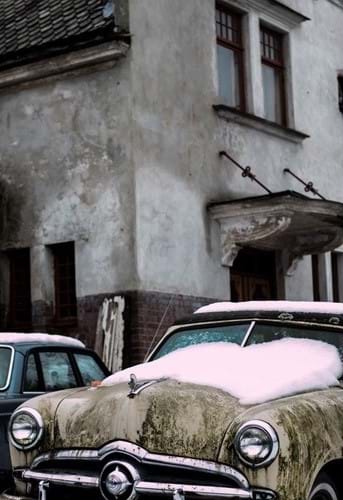
Resizes the image to the given dimensions. If the set dimensions do not match the aspect ratio of the original image then the output is stretched to match the new aspect ratio.
http://your-image?width=500&height=500&mode=stretch
Examples
Original
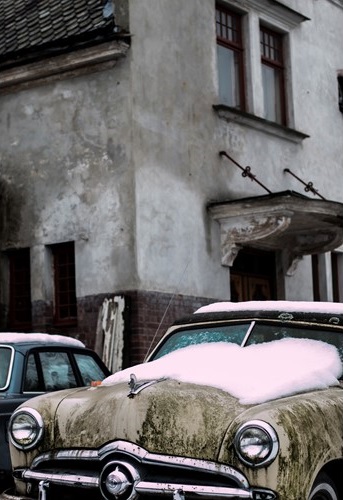
Resize Pad
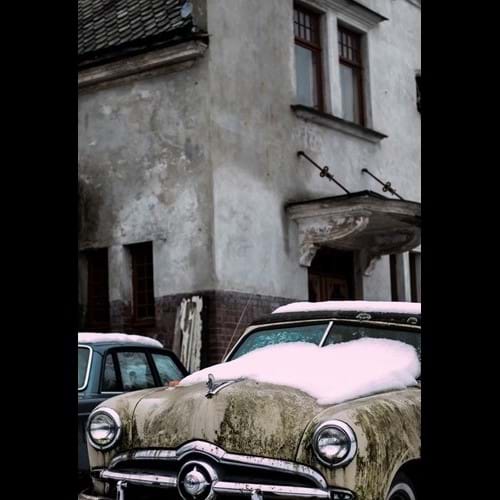
Resize BoxPad
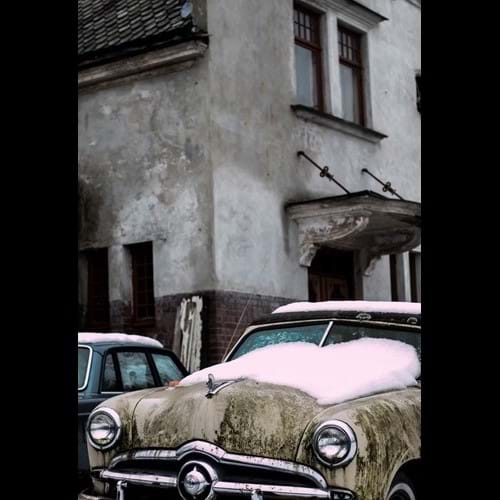
Resize Crop
Resize Min
Resize Max
Resize Stretch